
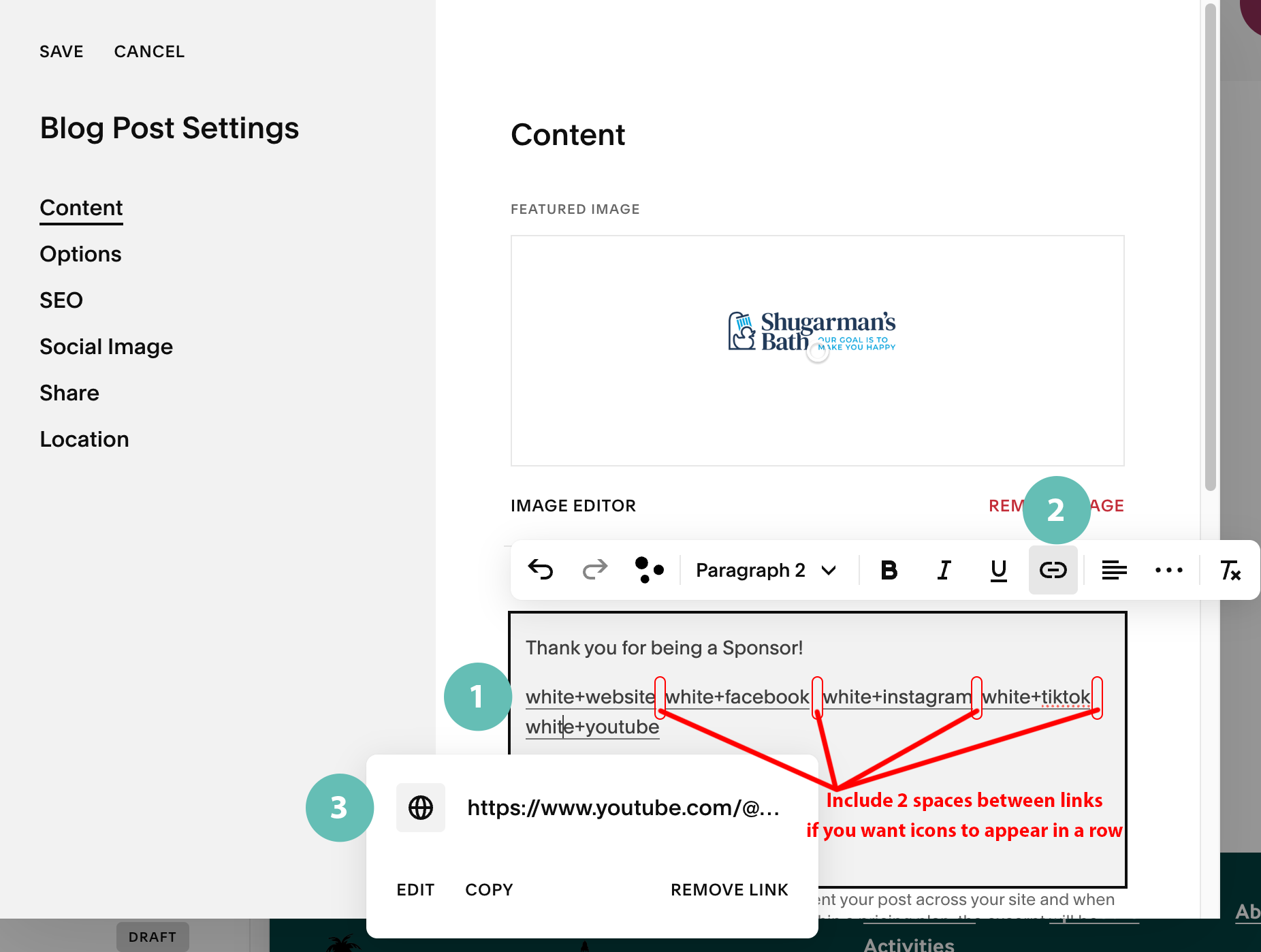
Instructions on how to use custom social media icons
When you are ready to add the icons, take these steps in any of the areas where you want to show the icons. An example is shown below for website URL. You have 2 options for icons, TEAL or WHITE.
For this example, we will create the teal icon.
Create new blog psot
Add blog title
Go to post settings and include a thumbnail, update the url and select SHRS for the author
Add clean un-hyperlinked text to the excerpt. Keep text left justified
Select that icon text and hyperlink the text as usual.
Enable “opens in a new window”
Click Apply
If you want the link icons to be side-by-side, leave 2 SPACE BETWEEN each link
example Link__link__link
The underline above showcases the 2 spacing. If you do not do this, squarespace will merge the links together and the code may break
If you are showings one link at a time, proceed with normal typing.
no audio only captions

Text Key for Teal Icons
teal+email
teal+etsy
teal+facebook
teal+instagram
teal+linkedin
teal+phone
teal+tiktok
teal+x
teal+youtube
teal+website
Text Key for white Icons
white+email
white+etsy
white+facebook
white+instagram
white+linkedin
white+phone
white+tiktok
white+x
white+youtube
white+website
Icon examples below